

NinjaTrader 8 export
How to export Trade Performance from NinjaTrader 8
To export trades from NinjaTrader 8 Trade Performance, open New, Trade Performance, generate your account and date range, right-click the Trades grid, export it and import the file into Dusk Analyst. Or skip exports: on Pro, a read-only add-on sends each closed trade with commission as you go flat.
CSV import is free (2 accounts, no card). NinjaTrader auto-sync is on Pro ($25/month), free for your first 5 trading days with no card.
To export trades from NinjaTrader 8, open New, Trade Performance in the Control Center, choose the account and date range, press Generate, right-click the Trades grid and export it, then import the file into Dusk Analyst (free for 2 accounts). To skip exports, the NinjaTrader 8 add-on syncs each closed trade with commission on Pro.
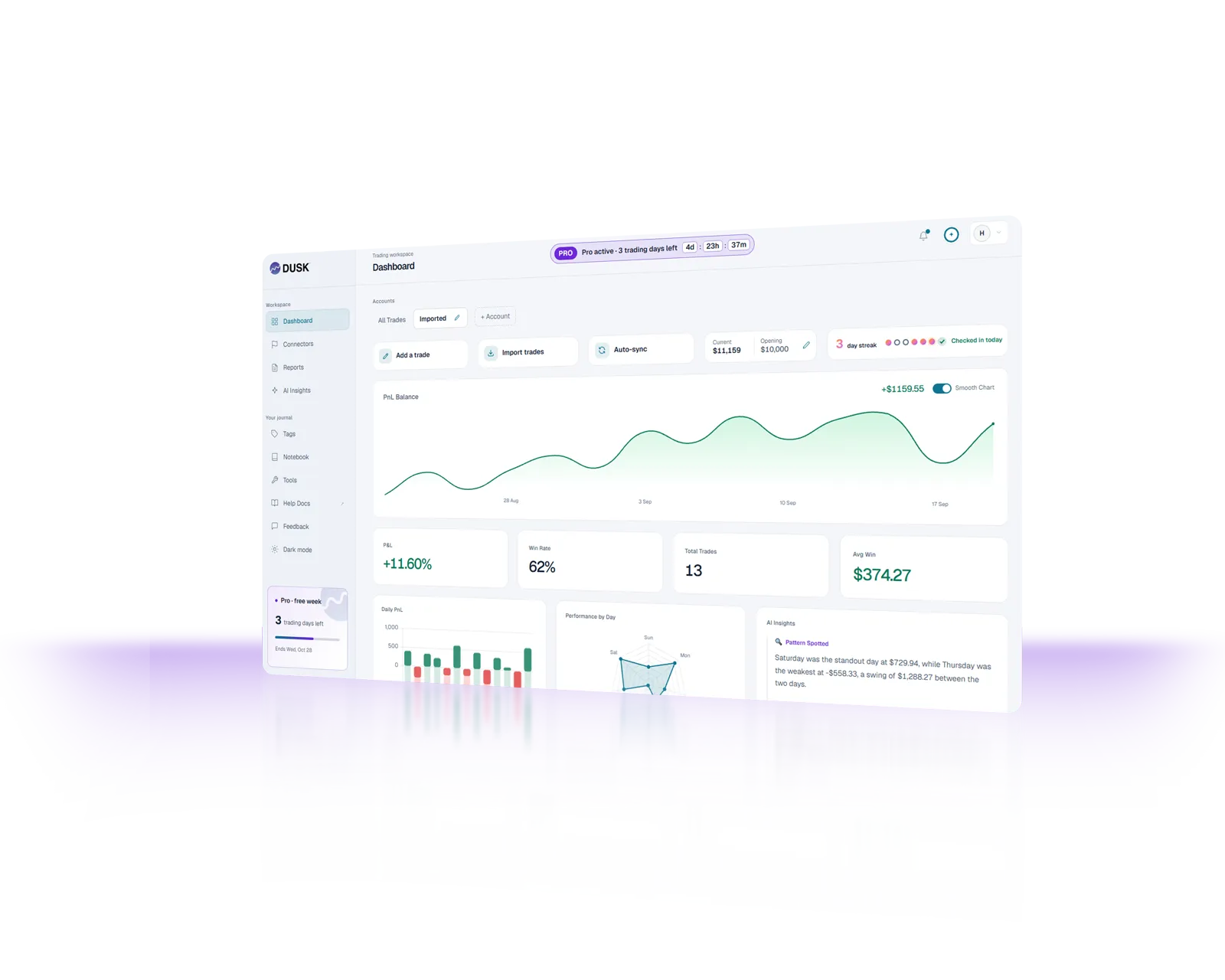
 MetaTrader 4
 MetaTrader 5
 cTrader
 NinjaTrader 8
 The5ers
 IC Markets
 Pepperstone
 Topstep
 Exness
 OANDA
OANDA FxPro
FxPro Vantage
Any broker or prop firm on MT4, MT5, cTrader or NinjaTrader 8 syncs. Also imports TradingView, CSV and Excel and MT4 / MT5 reports. See all 365 brokers
Quick answers
How do I export Trade Performance from NinjaTrader?
In the NinjaTrader 8 Control Center open New, Trade Performance. Pick the account (or accounts), the date range and the period, press Generate, open the Trades tab, then right-click the grid and choose Export. Save the file and import it into Dusk Analyst.
How do I export NinjaTrader trades to Excel?
Export the Trades grid from Trade Performance as a CSV file (right-click, Export). Excel opens CSV directly, and the same file imports into Dusk Analyst, where win rate, profit factor and P&L by day are worked out for you.
Why is NinjaTrader Trade Performance empty or not working?
Usually a filter. Check that the date range covers the days you traded, that the right account is selected (Sim101 and live accounts are separate), and that you pressed Generate after changing them. Trades only show after NinjaTrader has the fills in its database, so connect the account you traded on and let it load. If the grid is still empty, check NinjaTrader's own help or support; Dusk Analyst cannot read trades NinjaTrader has not recorded.
Can I import a NinjaTrader CSV on the free plan?
Yes. CSV import is on the Free plan ($0 forever, 2 accounts, unlimited trades). If Dusk Analyst does not recognise a column, it asks one simple question per column before saving.
Do I have to give my NinjaTrader or broker password?
No. Dusk Analyst never asks for your NinjaTrader, broker or investor password. Trades are sent by the read-only add-on running in your own NinjaTrader 8, so nothing logs in to your account from our servers.
26 seconds
Watch a trade log itself.
A real MetaTrader terminal. Close the trade, open Dusk Analyst, and it’s already there: symbol, direction, entry, exit and P&L. Nothing to export, nothing to type, nothing forgotten.
Auto-sync (MT4, MT5, cTrader, NinjaTrader) is on Pro. The free plan imports your history files.
Get started, freeAt a glance
Dusk Analyst at a glance.
- Price
- $0 or $25/monthFree forever. Pro is one flat price.
- Free plan
- 2 accounts, no cardManual entry, file import, tags, calendars and weekly reports. No time limit.
- Auto-sync
- MT4 · MT5 · cTrader · NinjaTraderOn Pro. Your first 5 trading days are free, no card.
- How sync works
- EA, cBot or NinjaTrader add-onRuns in your own terminal and sends each closed trade.
- Your password
- Never asked forNothing logs into your broker account from our servers.
- Brokers
- 365 checkedAny broker or prop firm on MT4, MT5, cTrader or NinjaTrader 8 works.
- Setup
- About 2 minutesPer account, once.
- Where it runs
- In your browserDesktop and phone. Nothing to install except the EA, cBot or NinjaTrader add-on.
- AI
- Dusk QuantAnswers questions about your own trades. Pro, 1,000 trade-analyses a month.
Option 1: export and import
Export NinjaTrader trades in 6 steps
Free plan. Best for backfilling older history.
- Open Trade Performance. In the NinjaTrader 8 Control Center, open New, Trade Performance.
- Pick the account and dates. Choose the account (one per export keeps evaluations separate) and the date range, then press Generate.
- Open the Trades view. Switch the display to Trades, so each row is one closed trade rather than one fill.
- Export. Right-click the grid, choose Export and save the file to your computer.
- Import into Dusk Analyst. At app.duskanalyst.com, open the account book for that NinjaTrader account, choose Import and pick the file.
- Check the preview. Make sure instrument, entry, exit, size, P&L and commission land in the right columns, then save.
Option 2: no exports
Let the add-on do it
Pro. Best for every trade from now on.
- Download the add-on from Connectors, import it with Tools, Import, NinjaScript Add-On, then open New, Dusk Analyst Sync and paste your key. Full steps: connect NinjaTrader 8.
- Each closed trade arrives when you go flat, with commission, net P&L and partial fills totalled into one trade.
- It sends what NinjaTrader has loaded (usually the current session), so use an export once for older history.
- NinjaTrader 8 desktop on Windows only; web and mobile trades come in by export.
Your account stays yours
No password needed
Dusk Analyst never asks for your broker password or investor password, and nothing logs into your account from our servers. Data is stored on Cloudflare, identity is handled by Auth0, billing by Stripe, and the AI that answers your insight questions comes from a third-party AI provider that receives only the trades you ask about. On NinjaTrader 8, a read-only add-on runs inside your own NinjaTrader and sends only closed trades, using a per-account API key. How it works.
Related
More NinjaTrader guides
How it works
Your NinjaTrader trades, journaled in minutes.
Create your account
Free tier: two accounts, no card required.
Import your CSV
Export your NinjaTrader history, or log trades manually.
Journal + AI insights
Same metrics, reports and insights as every other account.
See it in action
Ask your trading data anything.
Your journal isn't a logbook, it's a dataset. The AI reads your actual trade history and answers the questions that move your edge.
- Why do my NinjaTrader losses cluster on Fridays?
- Which NinjaTrader strategy am I actually profitable in?
- What happens when I break my 1% risk rule?
Brokers on NinjaTrader
Brokers and prop firms that use NinjaTrader
15 brokers and prop firms in our directory offer NinjaTrader accounts. Prop firms first.


Auto-sync setup
How do I connect my platform?
Auto-sync (MT4, MT5, cTrader, NinjaTrader) is on Pro ($25/month), free for your first 5 trading days with no card. The Free plan imports your platform's history file.
NinjaTrader
More NinjaTrader and futures guides
Futures tools
Ticks, margin, commissions and platforms
Prop firms
Which prop firms work with Dusk Analyst?
 Alpha Capital GroupFile import
 Apex Trader FundingNinjaTrader auto-sync
 BulenoxNinjaTrader auto-sync
 E8 MarketsMT4 · MT5 auto-sync
 Earn2TradeNinjaTrader auto-sync
 Elite Trader FundingNinjaTrader auto-sync
 FidelcrestFile import
 FTMOMT4 · MT5 · cTrader auto-sync
 FTUKMT5 auto-sync
 Funded EngineerMT4 · MT5 auto-sync
 FundedNextMT4 · MT5 · cTrader · NinjaTrader auto-sync
 FundingPipsMT4 · MT5 · cTrader auto-sync
Any firm whose accounts run on MT4, MT5, cTrader or NinjaTrader 8 syncs through the read-only EA, cBot or add-on, with challenge and funded accounts in separate account books. Supported means the account connects; we have no partnership with the firms.
Broker search
Does my broker work?


Each broker was checked against its own site in our 2026 audit. See all 365.
Pricing
Free is enough to build the habit. Pro is where it runs itself.
Start manual and free. Upgrade to MT4, MT5, cTrader or NinjaTrader auto-sync when you're ready to stop touching it.
Free
$0
A real journal, free from day one. $0 forever, up to 2 accounts, no credit card required, weekly reports included, and CSV import from any trading platform.
- Up to 2 accounts
- Manual entry + CSV import from any platform
- Tags, calendars & core analytics
- Weekly reports
No terminal connection. Upgrade to Pro when you want the vault to fill itself.
Start freePro
$25/month
The journal that journals itself. $25/month auto-syncs MT4, MT5, cTrader and NinjaTrader 8 across unlimited demo, live and funded accounts, with 1,000 AI trade-analyses a month, monthly reports and full export.
- Auto-sync MT4, MT5, cTrader and NinjaTrader 8 (terminal connection)
- Unlimited accounts, demo, live & funded
- AI insights & automated session reviews
- 1,000 AI trade-analyses every month
- Monthly reports + full export
- Priority support
5 trading days free, no card. Then $25/month.
Start your free Pro week See auto-sync in 26 secondsNo setup fees. No card for Free, and no card for your first week of Pro: every new account gets Pro free for 5 trading days. After that it is $25/month. We email you before billing starts.
Export once, then sync.
Then every closed NinjaTrader trade logs itself, commission included. NinjaTrader auto-sync is free for your first 5 trading days, no credit card.
Get started, freeNo card required.
FAQ
NinjaTrader export questions, answered.
How do I export my trades from NinjaTrader 8?
In the Control Center, open New, Trade Performance. Pick the account and date range and press Generate. Open the Trades view, right-click the grid and choose Export, then save the file. Each row is one closed trade with instrument, quantity, entry and exit price and time, profit and commission.
How do I import a NinjaTrader export into Dusk Analyst?
In Dusk Analyst, open the account book, choose Import and pick the file. Check the preview so entry, exit, size, P&L and commission land in the right columns; if a column is not recognised, the importer asks you what it is. Imported trades get the same analytics and weekly reports as synced ones.
Should I export the Trades or the Executions grid?
Trades. The Trades grid already pairs entries with exits into closed trades with profit and commission. Executions lists every single fill, which you would have to pair up yourself.
Can I avoid exporting NinjaTrader trades every week?
Yes. On Pro, the Dusk Analyst add-on for NinjaTrader 8 sends each closed trade as you go flat, commission included, so there is nothing to export. Pro is $25/month and free for your first 5 trading days with no card.
Can I bring in old trades and then auto-sync new ones?
Yes, and that is the usual setup. The add-on only sends fills NinjaTrader has loaded, usually the current session, so export your older history once and import it, then let the add-on keep up from there.
Does it work with NinjaTrader web or mobile?
No. The add-on is a NinjaScript add-on, so it runs only in NinjaTrader 8 desktop on Windows. If you trade only on NinjaTrader's web or mobile apps, import a CSV of your trades or log them by hand instead.
Does NinjaTrader have a built-in trading journal?
NinjaTrader has a history and trade report view that shows your past trades and some statistics, but that's not a trading journal in the review sense: it doesn't capture your entry reason, notes, emotional state or the context around each trade, and it doesn't track your journaling habits over time. A dedicated journal like Dusk Analyst stores the trade data and lets you layer review notes, tags and analysis on top, then report on win rate, profit factor, P&L and equity curve - the metrics that actually improve decisions. If you want the terminal's data without the manual copying, Dusk Analyst's EA reads the closed-trade history and syncs it automatically on Pro.
How do I export my NinjaTrader trade history?
Every NinjaTrader terminal keeps a closed-trade history in its Account History view, and that data can be exported to a file for import elsewhere. Save the history as a report or CSV (the fields are standard: time, ticket, symbol, volume, price, commission, swap, profit), then import the file into Dusk Analyst on any plan - the free tier includes CSV import. On Pro you don't even need to export: the Dusk Analyst EA reads the same history automatically and pushes each close as it happens, including catch-up for periods the terminal was off.
Is there a free NinjaTrader trading journal?
Yes - Dusk Analyst's free tier is $0 forever and works with NinjaTrader: two accounts, manual entry and CSV import, with win rate, profit factor, P&L and equity curve calculated for you. That's a genuinely usable free journal, not a trial. If you want every closed NinjaTrader trade to sync itself, Pro adds the read-only EA at a flat $25/month with unlimited accounts and AI insights, and every new account gets Pro free for 5 trading days, no card.
Will the Dusk Analyst EA slow down my NinjaTrader terminal?
No - the EA is deliberately light. It's a single read-only file that does two things: it watches for closed trades in the account history and it sends them over HTTPS with your per-account API key. It never places orders, never repaints charts and doesn't interfere with your indicators or other EAs; it runs on its own chart window, following the usual one-EA-per-chart convention. The network call is a few kilobytes per closed trade, so even on a slow connection there's no noticeable impact on the terminal or your execution.
Is Dusk Analyst really free?
Yes. The free tier costs $0 forever and includes two accounts, manual trade entry and CSV import - enough to journal a live account properly, with win rate, P&L and equity curve all calculated for you. There is no credit card required to start. Pro ($25/month flat) adds unlimited accounts, MT4/MT5/cTrader/NinjaTrader auto-sync, AI insights on your trading (1,000 trade-analyses a month), monthly reports and full export, and every new account gets Pro free for 5 trading days with no card. The pricing is deliberately simple: one plan, one price, no per-feature upsells.
Is there a free trial?
Yes, and it needs no card. Every new Dusk Analyst account gets Pro free for 5 trading days from sign-up: auto-sync from MT4, MT5, cTrader and NinjaTrader 8, AI Insights with 1,000 credits, monthly reports and unlimited accounts. After that Pro is $25/month, and you can cancel anytime from Billing in the app. If you skip it, the account moves to Free with every trade kept.
Can I import my existing trade history?
Yes - CSV import is available on every plan, including free. If you've been tracking trades in a spreadsheet, broker export or another journal, export the CSV from wherever it lives and import it into Dusk Analyst; the journal matches it against your accounts and keeps your history continuous. Import is also the fallback for platforms that don't run MT4, MT5, cTrader or NinjaTrader 8. For MT4/MT5/cTrader/NinjaTrader terminals, Pro auto-syncs going forward and the EA backfills any trades your terminal missed while it was off. Any platform that exports a CSV of your trade history works. Dusk Analyst recognises TradingView, Tradovate, cTrader, MT4 and MT5 exports on sight; for anything else you map your columns once and that parser is saved for next time. Comma, semicolon and tab files are all handled, day-first and month-first dates are detected from the file itself, and any row that cannot be read is listed for you rather than dropped quietly.
How many AI credits do I get with Dusk Analyst Pro?
Pro includes 1,000 AI trade-analyses every month. One credit covers one trade, so asking a question about a 40-trade week costs 40 credits and you can keep asking. The allowance resets on the 1st of each month and the counter sits in the top bar of the app, so you always know where you stand. Narrowing a question to one account or a shorter date range makes the same allowance go much further. Free accounts get a small number of AI credits to try AI Insights, alongside the full journal, analytics and weekly reports, and the free Pro week (5 trading days, no card) includes the full monthly allowance.
Guides
Find the setup for how you trade.
Calculators10
Platforms17
- MT4 Trading Journal
- MT5 Trading Journal
- XAUUSD Trading Journal
- cTrader Trading Journal
- Connect MT5
- Connect MT4
- Connect cTrader
- Connect NinjaTrader
- NinjaTrader Commission Tracking
- Export NinjaTrader Trades
- NinjaTrader Prop Firm Journal
- Thinkorswim Journal
- TradingView Journal
- NinjaTrader Journal
- NinjaTrader vs Tradovate
- Export MT5 Trade History
- MT4 Account History
Prop firms5
Markets5
Crypto exchanges7
Compare13
- Best Trading Journal Software
- TradeZella Alternative
- TraderSync Alternative
- Tradervue Alternative
- Edgewonk Alternative
- Dusk Analyst vs TradeZella
- Dusk Analyst vs TraderSync
- Dusk Analyst vs Tradervue
- Dusk Analyst vs Edgewonk
- Dusk Analyst vs TradesViz
- Best Trading Journal
- Journal vs Spreadsheet
- Myfxbook Alternative
Templates & guides21
- Tradovate Trading Journal
- Automated Trading Journal
- No Investor Password Journal
- Free Trading Journal
- Beginners Journal
- Excel Journal Template
- Google Sheets Journal
- Notion Trading Journal
- Best Free Journal
- How to Journal Trades
- How to Review Trades
- Swing Trading Journal
- Trading Log
- Trading Diary
- Trading Journal for Mac
- Paper Trading Journal
- Revenge Trading
- Overtrading
- Common Trading Mistakes
- How Many Day Traders Are Profitable
- Trading Metrics Explained